RoundHive Help & Guide

How to use RoundHive to create, share, and engage

RoundHive guide cover image
Contents

Overview

Welcome to RoundHive

Where Ideas Gather. Where Connection Has Meaning. A new kind of social platform, built for intentional connection, creative freedom, and human-centered AI. RoundHive introduces Hives-purpose-driven spaces where content, audience, and intent are clearly defined. Users create Hive Activities within the right context rather than posting into a single undifferentiated feed.

RoundHive is an interactive, privacy-focused social media platform designed around meaningful connections and intentional sharing. This guide walks you through the main features of the platform and explains how to use them effectively.

Create. Share. Collaborate. On your terms. In your context. Without losing control.

Getting Started

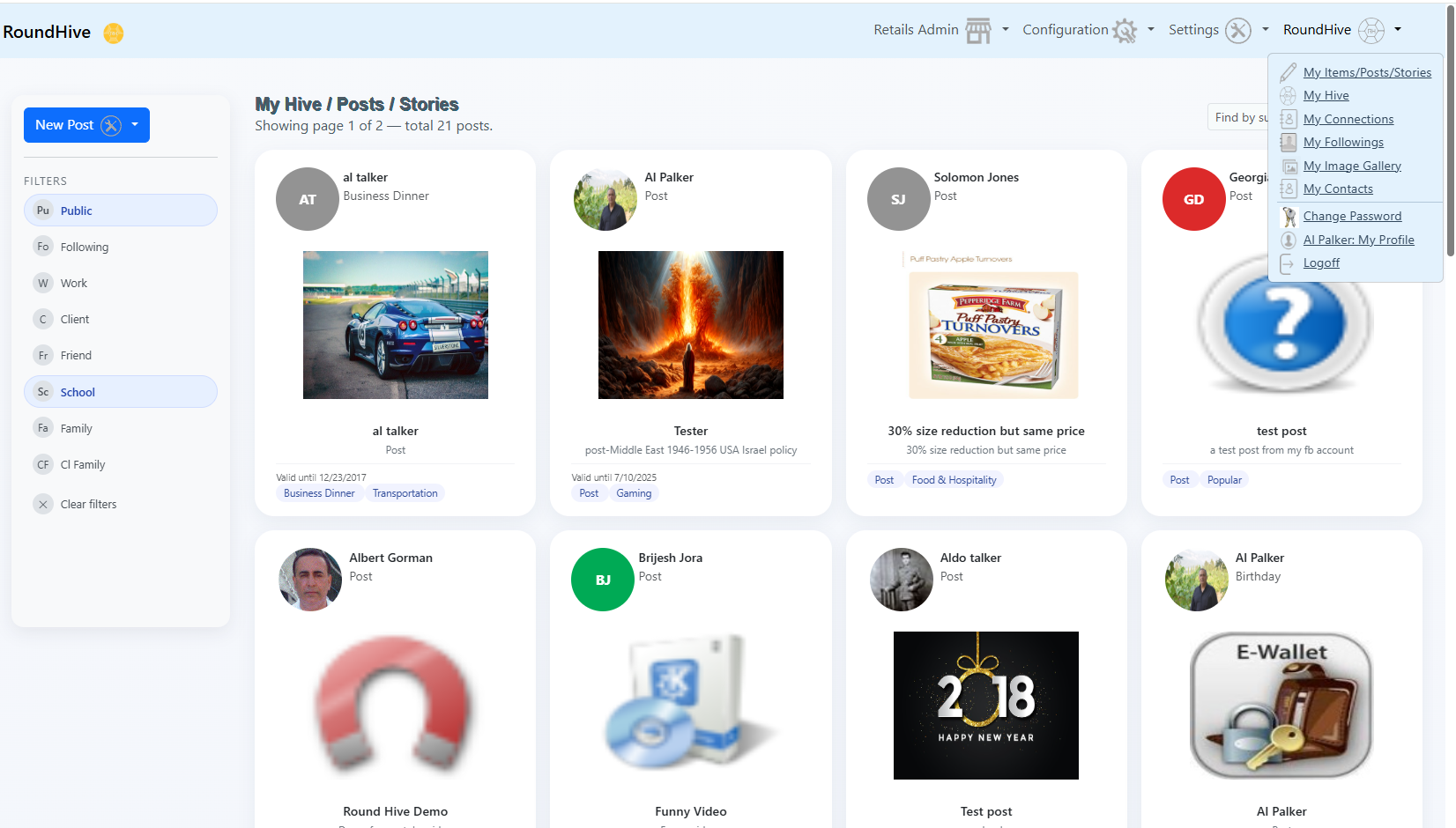
After your registration and first login, RoundHive automatically loads your default Hive and connections. This is your personal activity space where posts, stories, and updates from your connections appear.

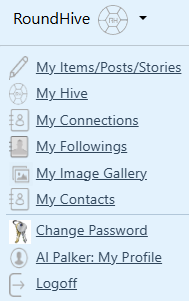
• My Followings – Your Hive Followings

  • My Contacts – Your address book and relationship controls. • Image Gallery – Manage images used in posts.
  • Update My Profile – Edit your profile, photo, resume, and shared details.

Your hive activity will be displayed once you are logged in. You can hover on the image to view briefly or click on the image to get the whole post/story and enter your interactions.

Figure

My Hive

My Hive

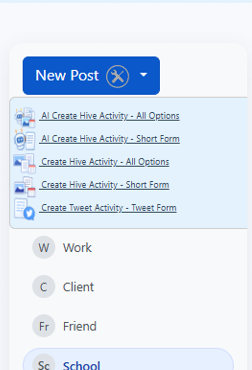
You can create a new Post/Story from this screen

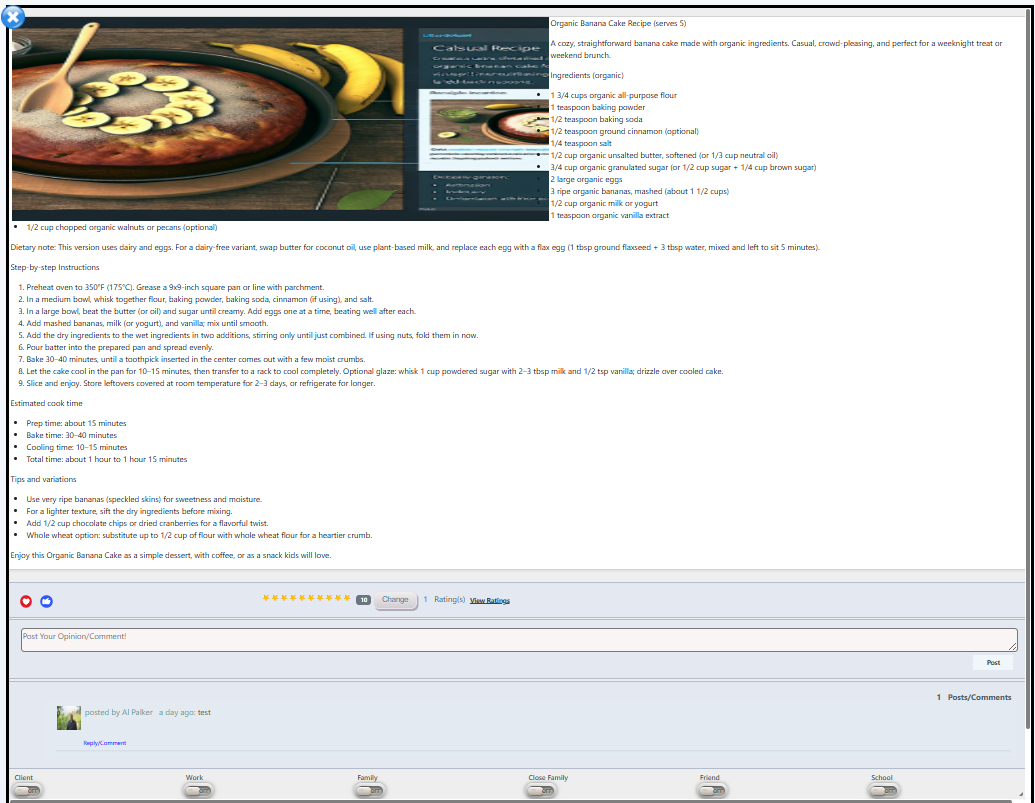
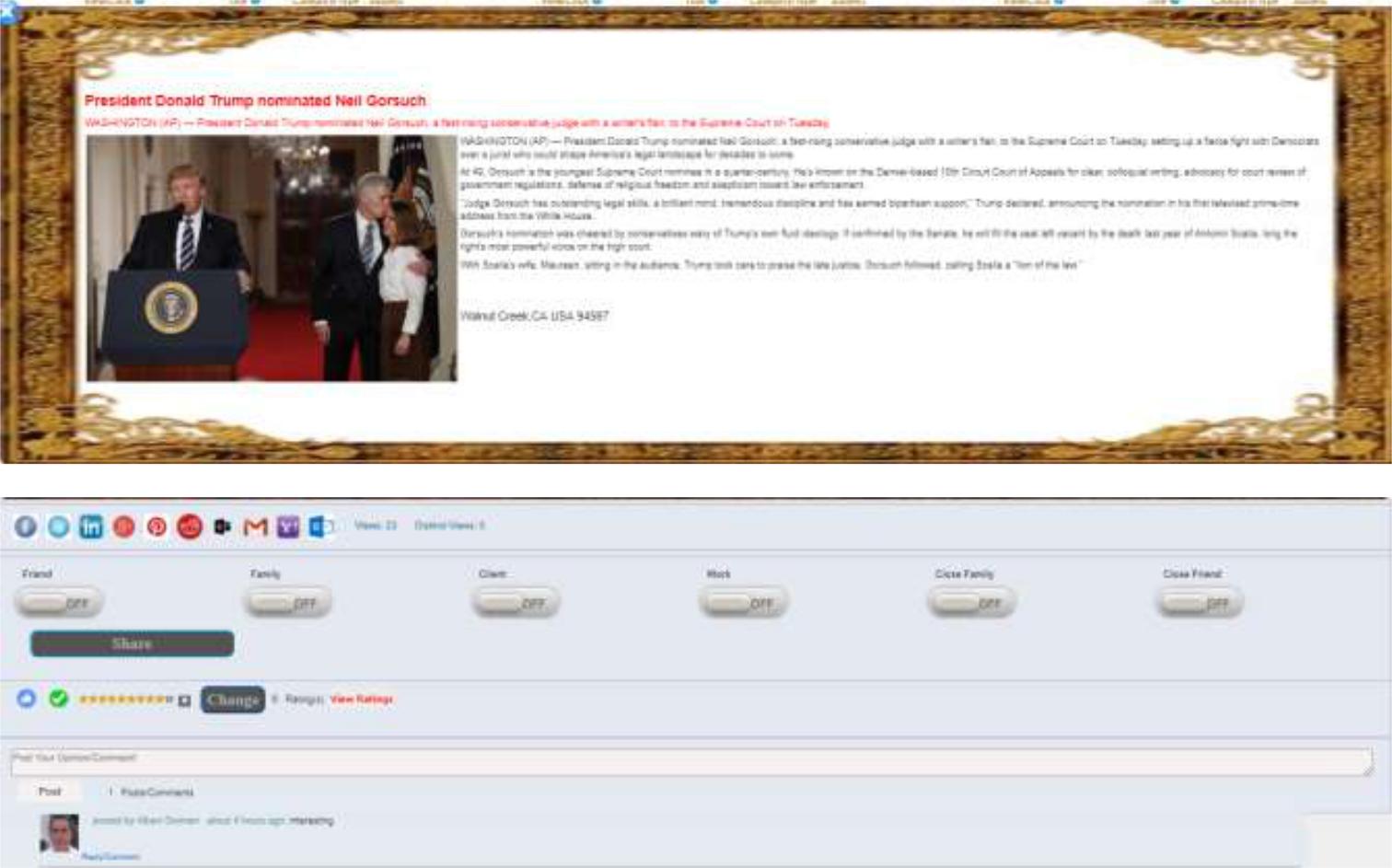
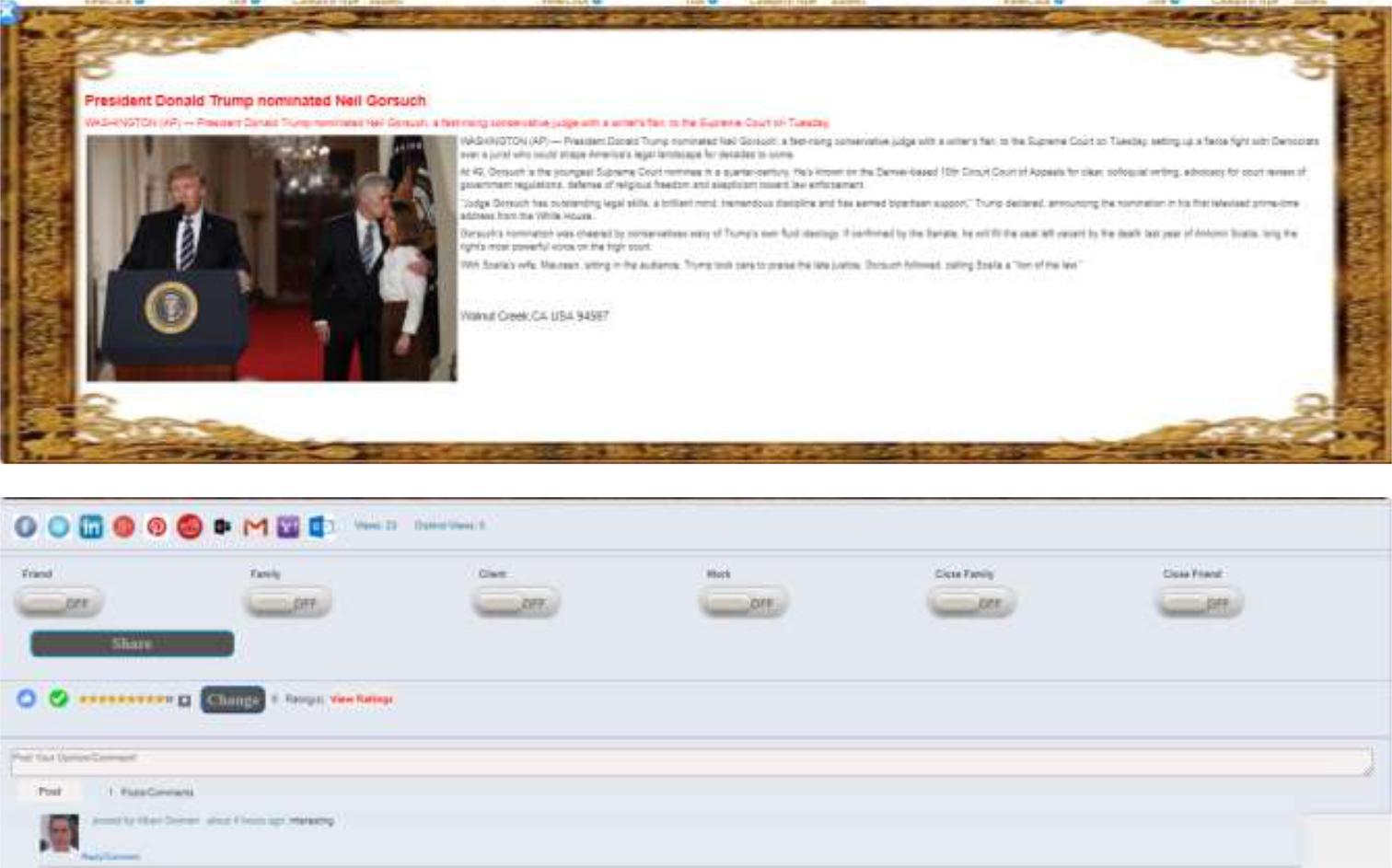
When you click on a post/story, the post will pop up and you can interact with the post/story. The following is an example of a popup post/story:

Figure

Popup Post/Story

My Items/Posts

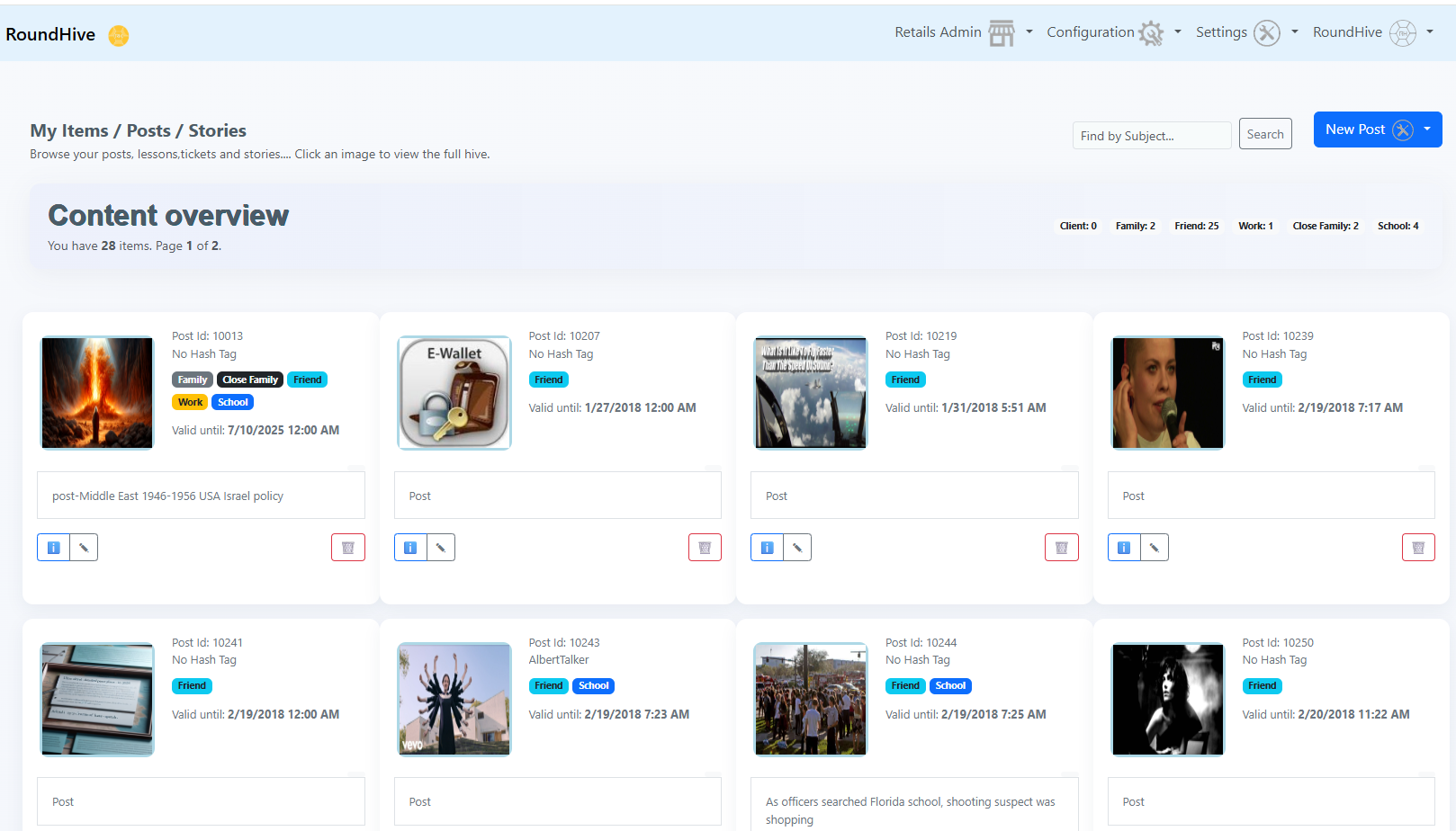
Your hive posts will be listed for edit and review. You can hover on the image to view briefly or click on the image to get the whole post/story.

Figure

Creating Posts and Stories

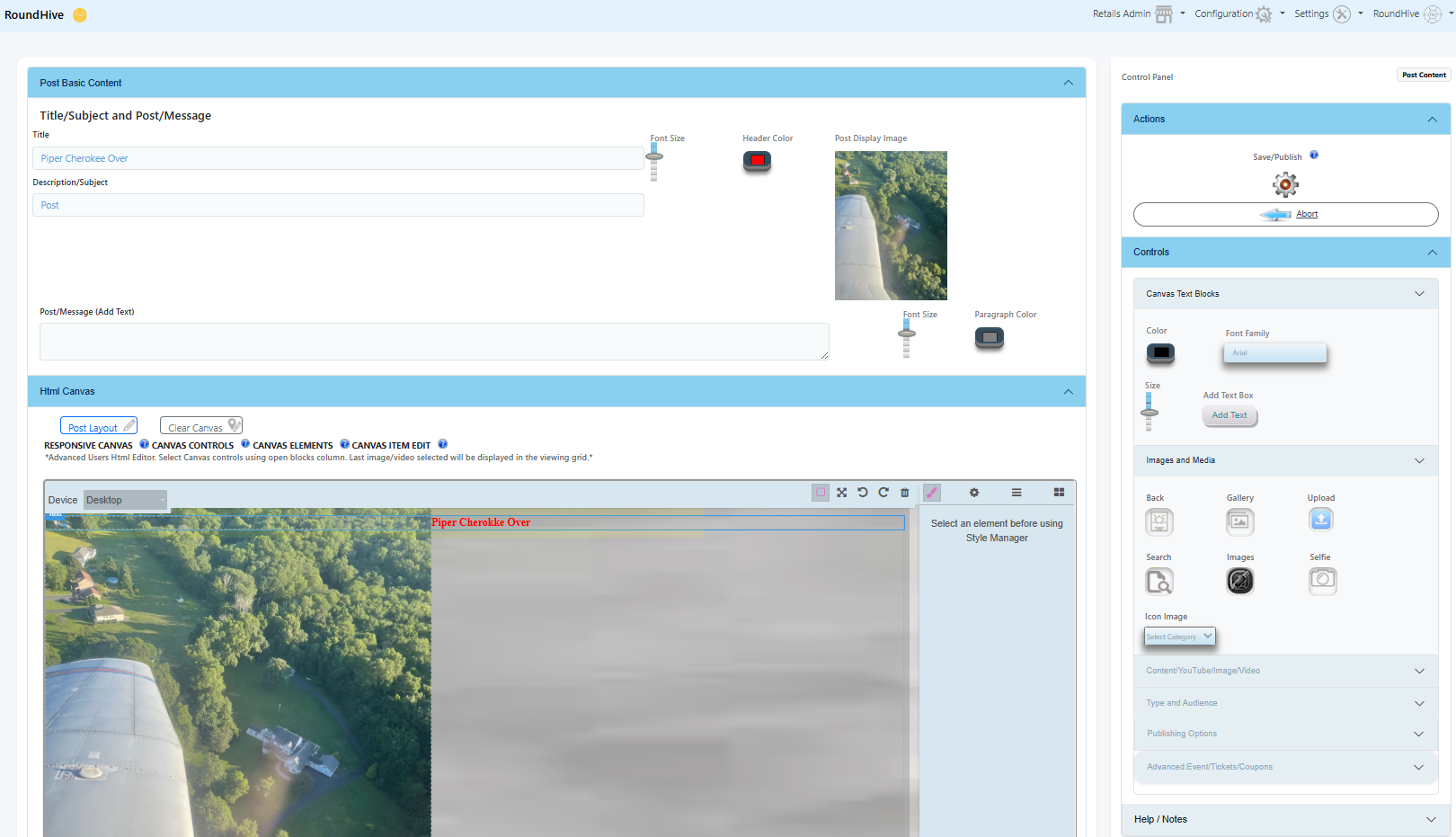
RoundHive Designer allows you to create posts using templates and prompts. Only Title and Subject are required. You may add text, images, videos, and links. You can either click Create Post or Edit existing post.

Figure

You can share the post/story (if public was enabled by the author/publisher), rate the post/story or engage with the story by commenting on the post/story and discussing it.

During the design time of Post/Story you can chose the Hive Circle.

Figure

Hive Circle

Figure

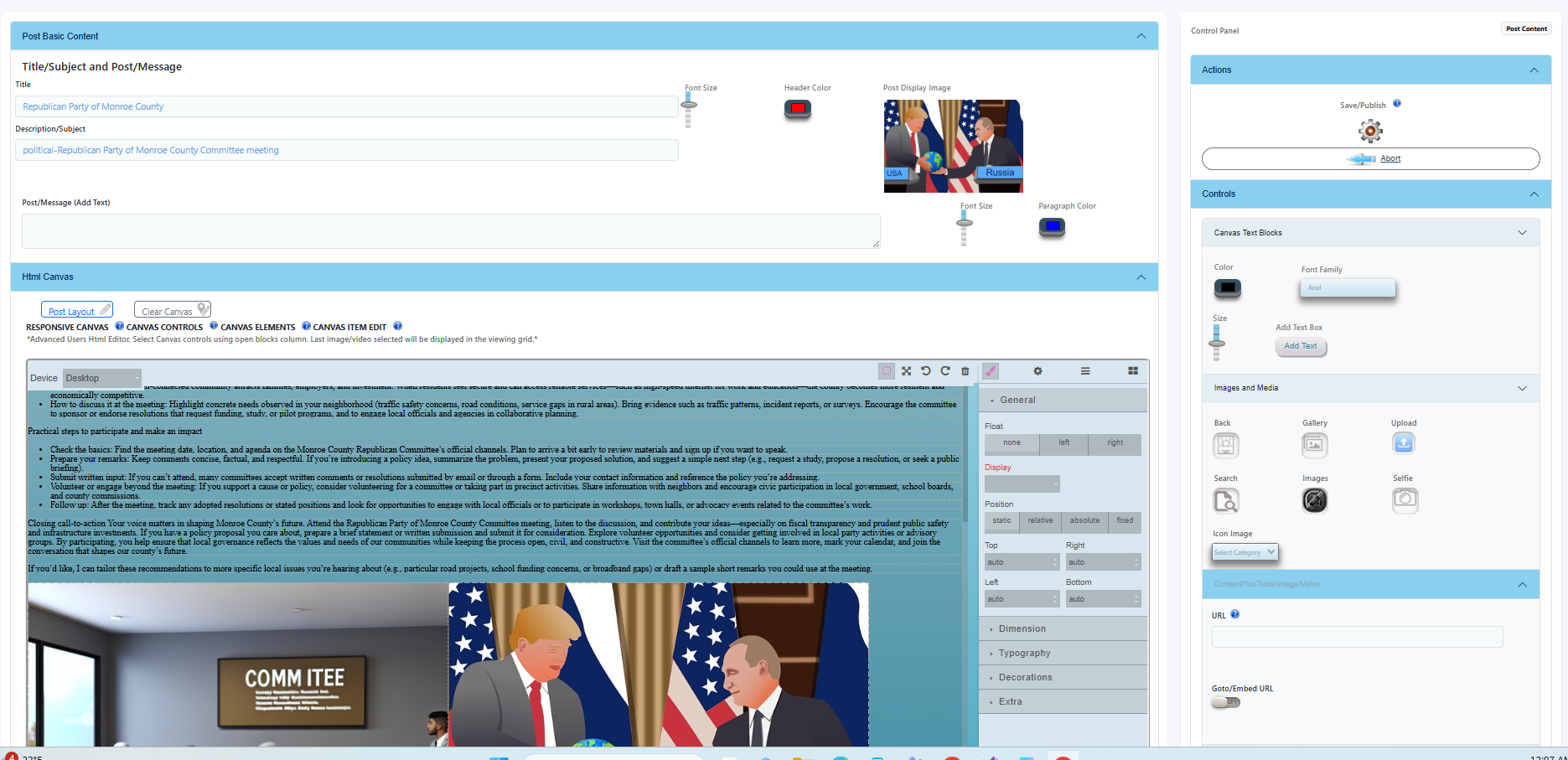
Designer Canvas/HTML Editor

When the Post/Story pops Up, the user can share the post/story

Figure

Using the Canvas

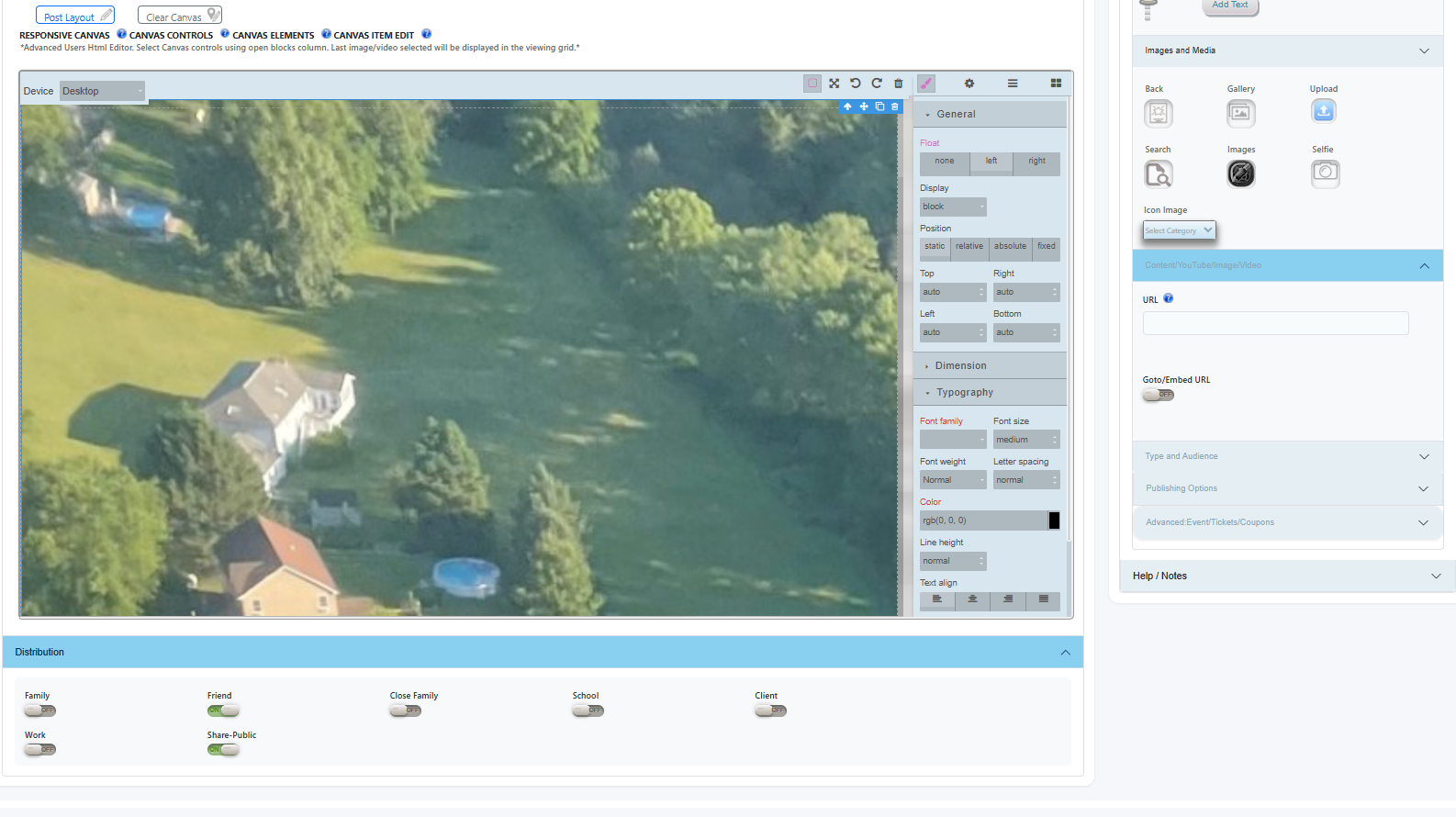
The canvas supports images, text blocks, YouTube videos, and MP4 files. Drag elements onto the canvas and adjust properties by selecting them.

Figure

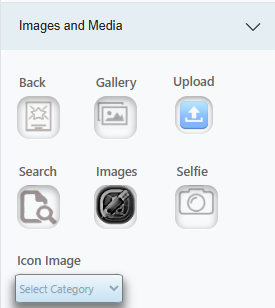
Images and content can be provided using the following sources:

  • Search using image provider service

Upload

  • Select from RoundHive Library

Use Camera

  • Use web address from where images and content could be retrieved (copyrights need to be observed).

Image Editor

All uploaded or gallery images can be used in your post/story. The image control keeps track of all resources used and makes them available to be dropped on the canvas.

The canvas can contain YouTube videos, Facebook videos, and other video types (e.g. mp4). Images can be dropped to the canvas to droppable locations (columns, divs or empty space). Different control types can be added to the canvas and the commonly used ones are the image and text controls (top on the right canvas panel). When you click on an item on the canvas you can change its properties.

Using the URL Control

You can drop YouTube URLs, MP4 Videos or Facebook-embedded content URLs. To share things from Facebook you can embed a public post or video. When you embed a post that contains a video, the message that was posted with the video will be included. When you embed a video, only the video player will be included. To embed a video, go to the video you want to embed, click on the top right side of the post and select embed copy. Then paste the code that appears and add it to your own website or web page. If you embed a FB video and the audience of the video changes from public settings in FB, a message saying the embedded video is no longer available will appear on the website.

The URL control can also provide hyperlink from the image to the said URL site. So when users display your post they can jump to the URL site. In addition, it could be used to get images and content from the said URL. Please, note the following before pressing the “Extract URL Content” button as the action may fall into content scrap.
Extract Content:

  • The content is not copyright protected
  • The user does not violate the Terms of Use of the site
  • The user does not gather sensitive information
  • The content adheres to fair use standards

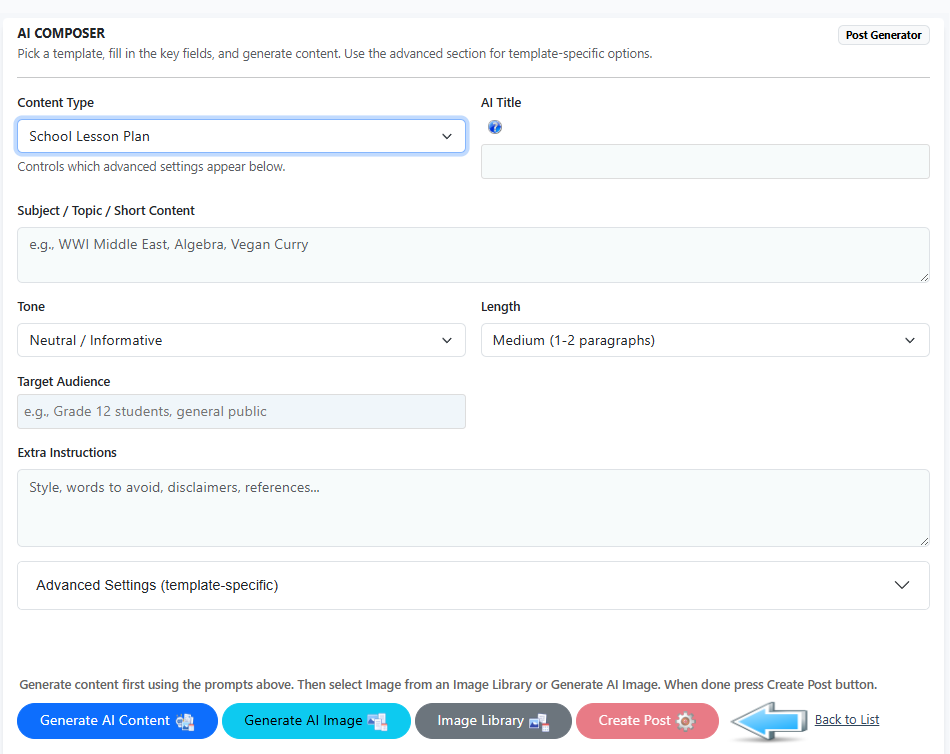
Using the AI Generator to Generate Posts

Figure

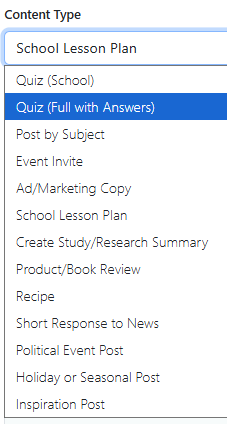
You can choose the Content type and then enter several requests and prompts in order to generate the post content using AI.

Figure

Sharing and Visibility

When publishing, choose how your content is distributed. Public items can be shared and searched. Private or group-restricted items are delivered only to selected connections. HashTags can be personal or group-based and help organize public content.

Figure

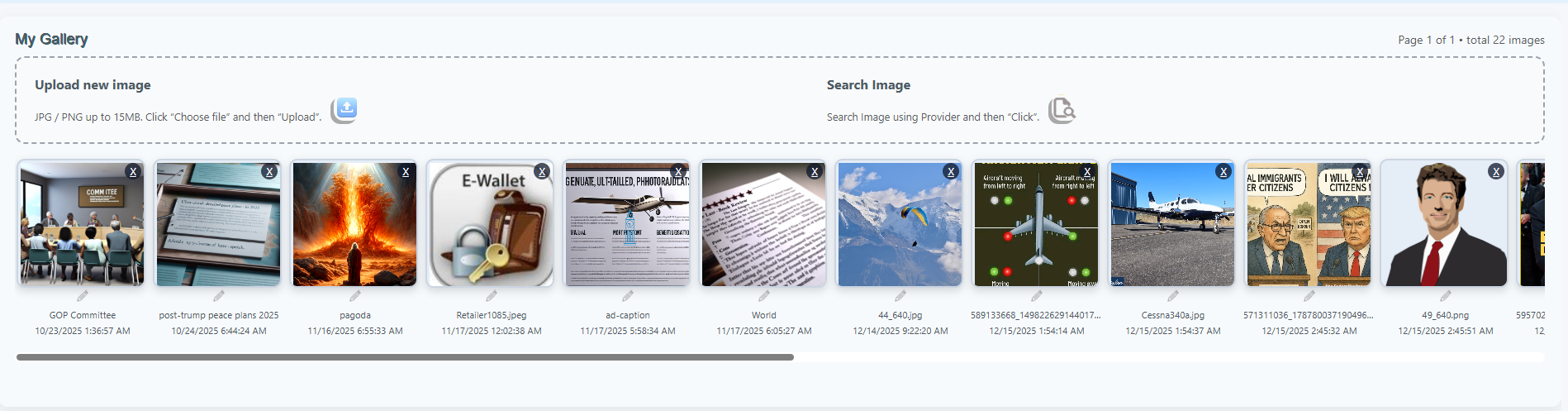
My Image Gallery

Figure

All the images you uploaded, searched, AI Generated or resourced will be listed in the Gallery.

Figure

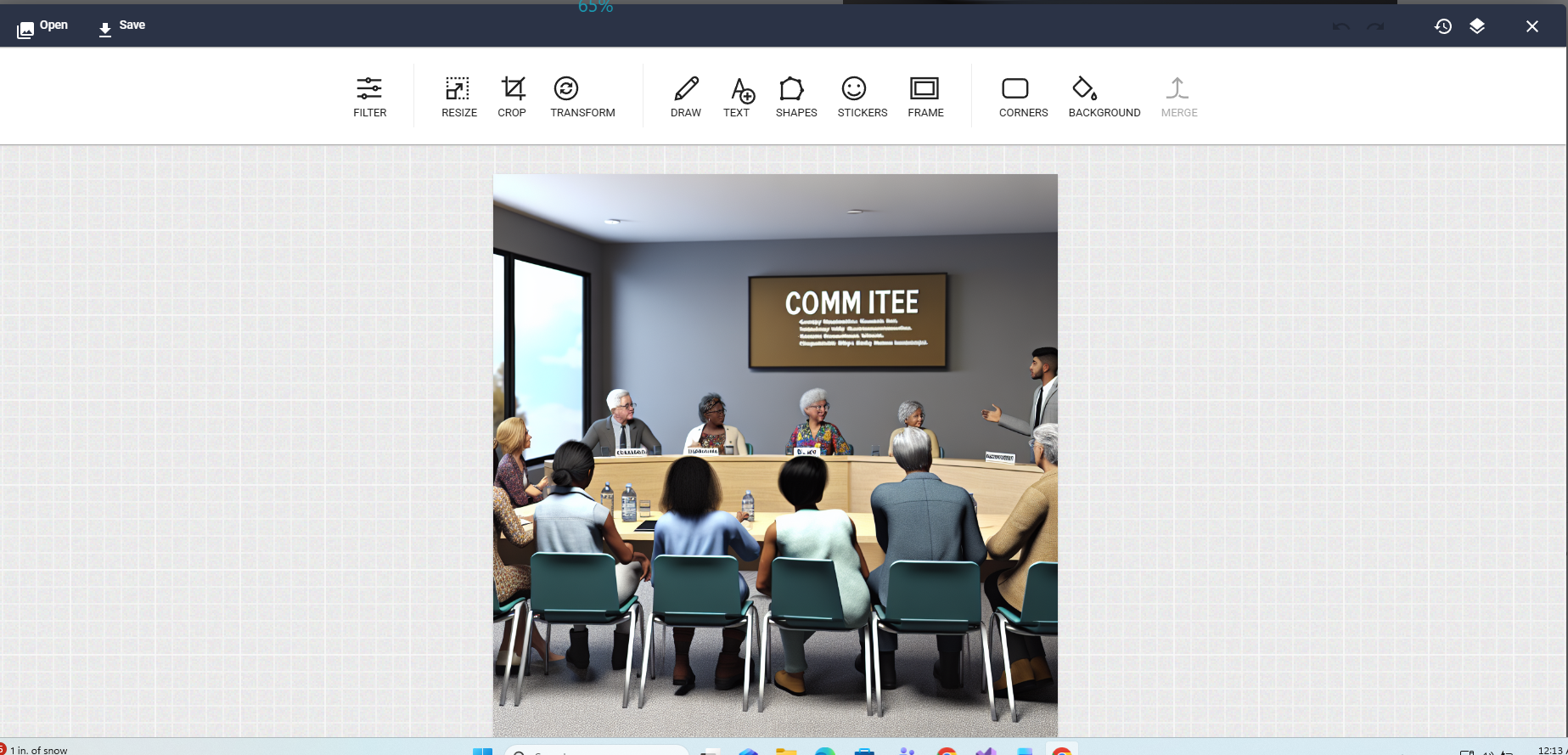
You can edit the images using the built-in image editor.

Figure

My Connections

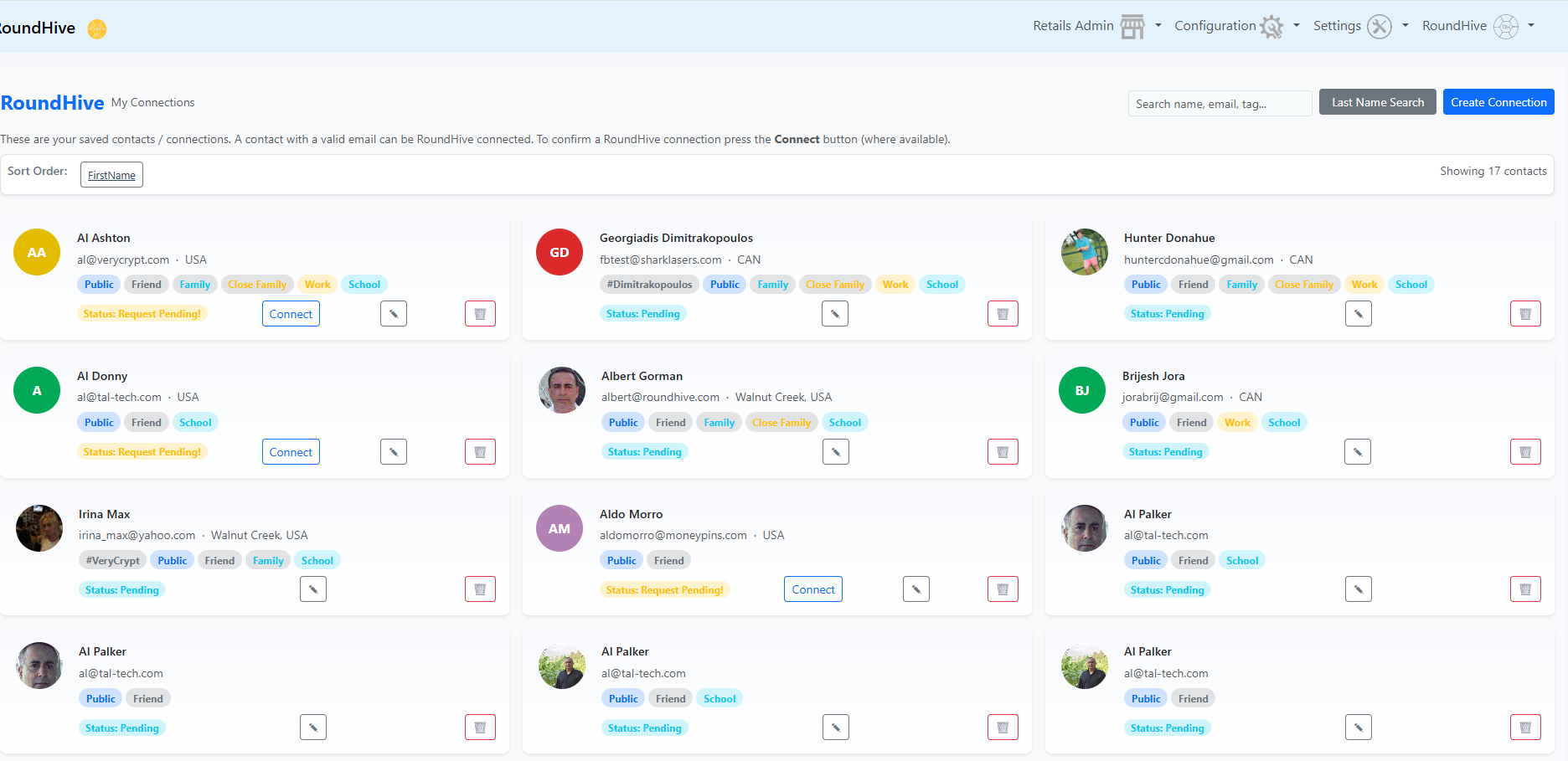
RoundHive strives to protect your privacy and makes sure your connection is based only on your address book. You need to know the email of the person you want to connect with. You can also enter new contacts. If you want to connect with others on RoundHive, press the connect button near each contact and an email will be sent to them. Once they connect, the connection status will change to connected.

Once a user is connected, you will be able to get their posts/stories based on the group classification of each connection. If connected and if you disable the connection, and you won't get any posts from that user or connection. RoundHive does not market your book to anybody and you're the only one to access it. Your friends or any data mining company cannot get your data or take your contact list and use it for any other reasons.

The distribution of the post occurs when you edit or create a post. You can decide how to distribute it. If it's shared public it can be seen by all. There are two types of Hashtags:

  • Personal/User Hashtag (only the owner can use this tag)
  • Group Hashtag. (Shared or Group tag and the owner manage the tag. Connected members can post stories using the Group Tag)

Hashtag post/story has to be shared-public. If the story/post is not shared public only the designated connection groups can get and interact with a post/story. Publishing is based on the address book how you designate each contact.

Figure

Address Book & My Contacts

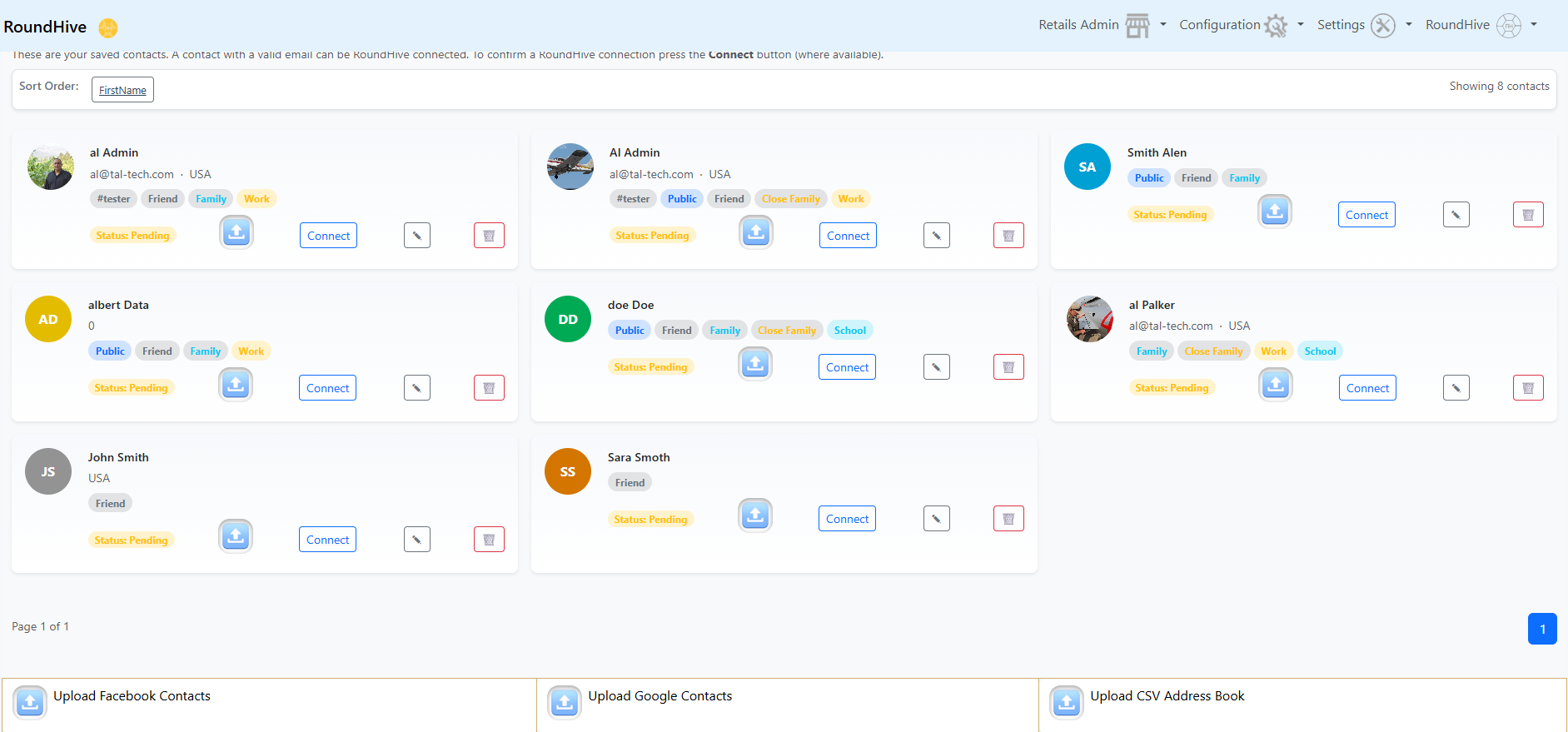
RoundHive is address book–driven. You connect with others using their email address. Once connected, the contact is copied to “My Connections” and you will receive their posts based on group classification. You may disable a connection at any time to stop receiving content.

You can upload address book from several sources.

Figure

Retailers and QR / NFC

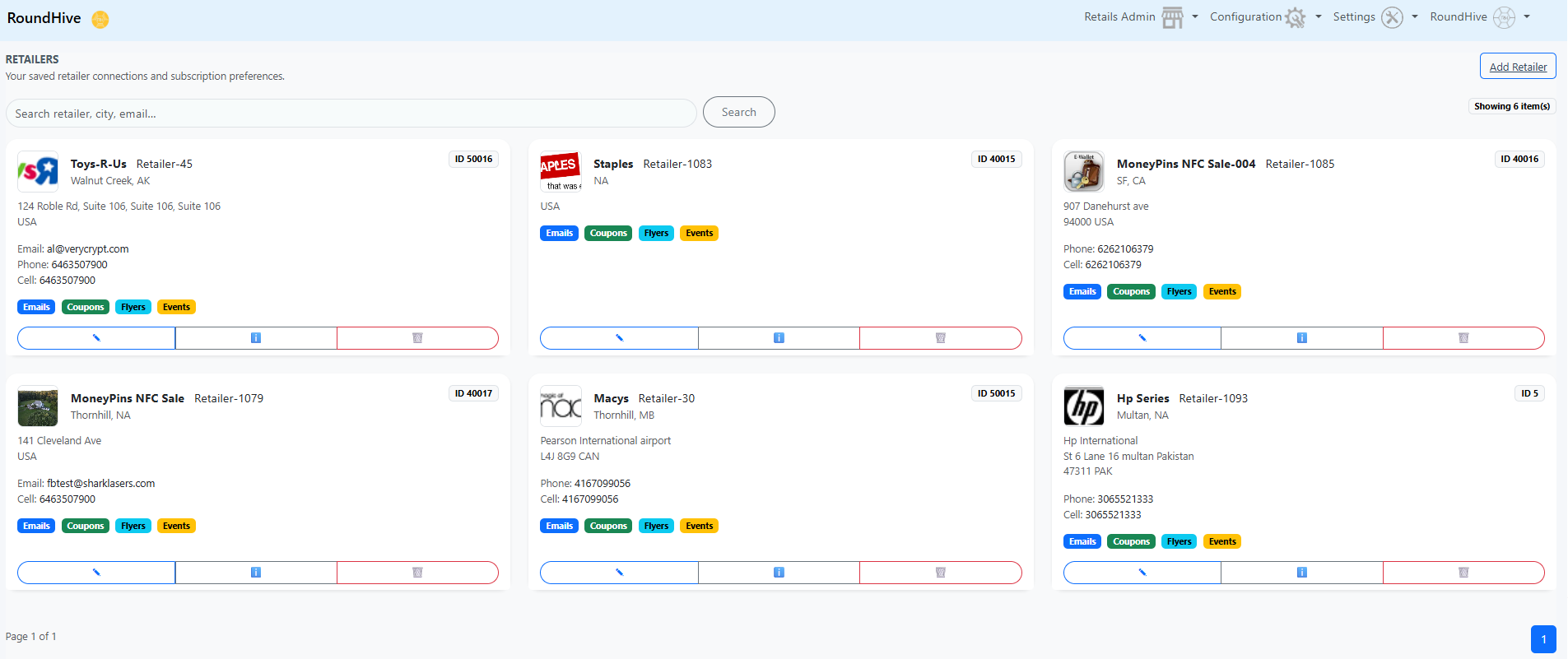
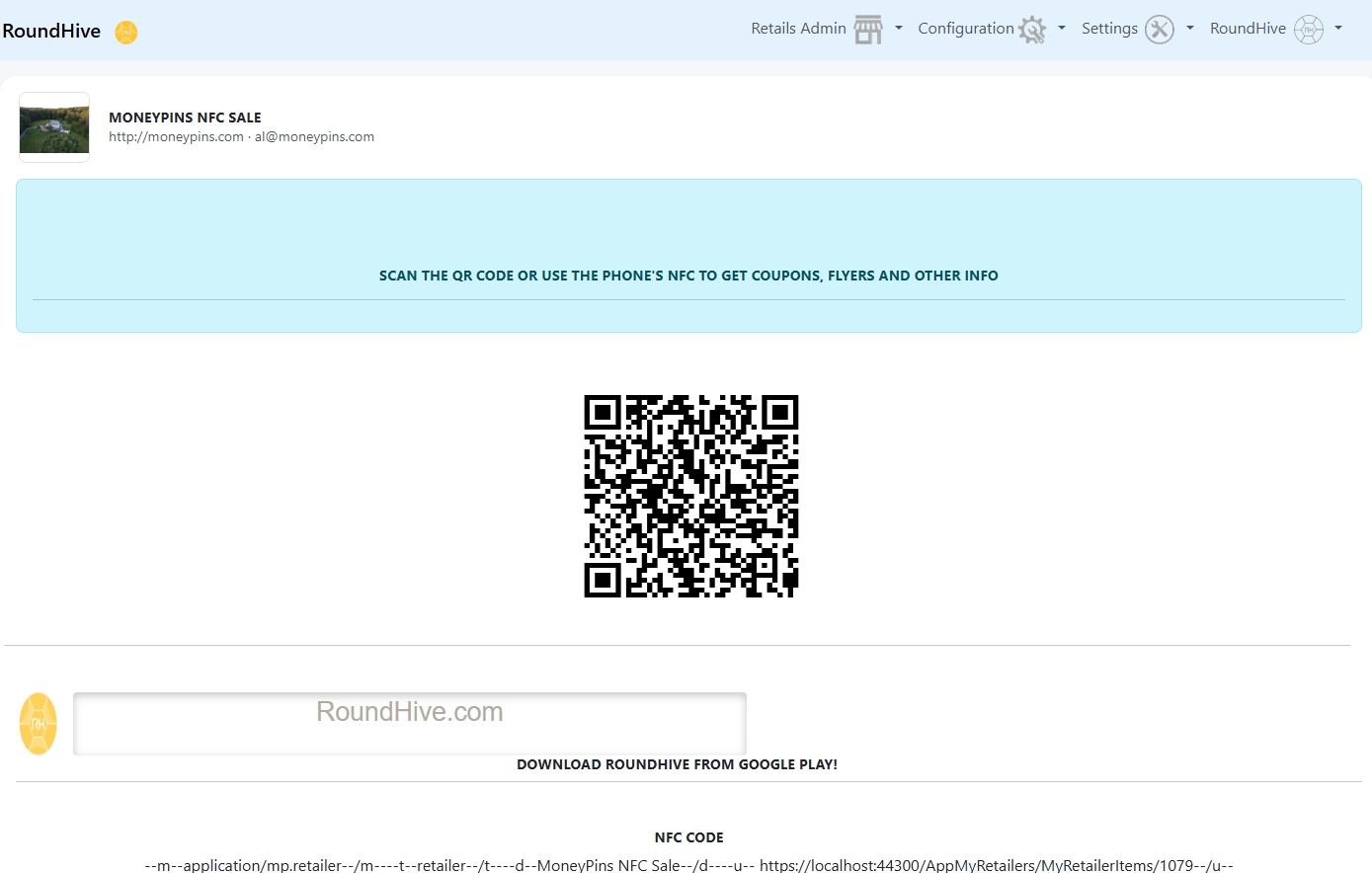
Retailers can post QR or NFC tags on doors or windows. Scanning them allows users to instantly receive menus, coupons, flyers, and events (once you install the latest RoundHive Mobile App)

Figure
Figure

Events, Coupons, and Tickets

Figure

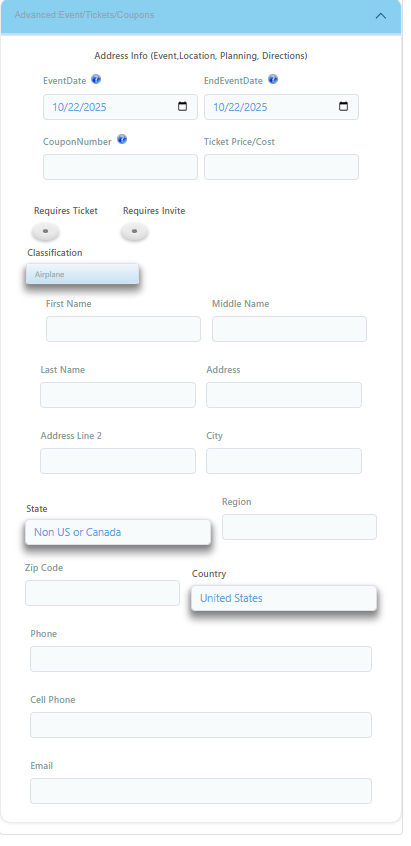
If an event is to be announced, the following fields as listed in the image below could be used. Address information is used by the app to display the map of a location and also give directions. If a bar code is to be added on the post, its value is retrieved from the coupon number field.

RoundHive makes it possible to create online events and distribute them directly to your connected users.

The barcode type enables you to select a type of barcode to be displayed based on the value entered in the coupon number field. You can enter any value into the coupon number field in order to display a barcode (e.g. QR code can be a URL, however, other items may require a number of specific definitions).

You can also switch on or off the address and comments/ratings for a post. If Comments/Rating is off, the post cannot be rated and comments cannot be added.

Privacy and Data Protection

RoundHive never sells or markets your address book. Only you can access your connections. Your data is protected, and visibility is always under your control.

Becoming a Retailer

To become a RoundHive retailer, submit a retailer application through the setup menu. Once approved, you may publish advanced content such as coupons, flyers, tickets, and events.